以下のツールを(早速)更新したので、差分を記載する。
サンプル出力
画像はAdobeStockの無料素材からpng画像をお借りした。リンクはページ末に。
※ そもそもAIファイルが配布されているので、素材の利用にあたって、自分のツールでpng画像から分離する必要はありません。
レポート画像の出力
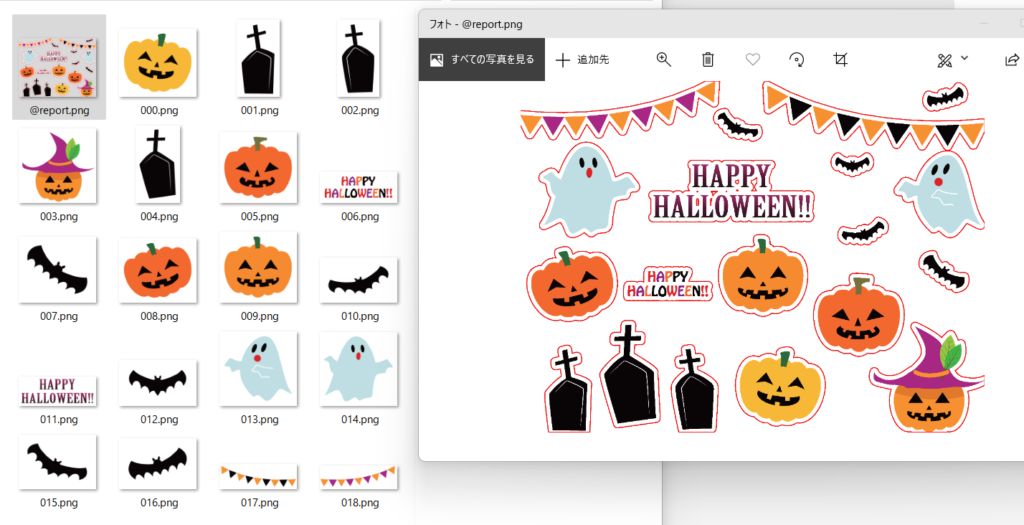
どういう輪郭で画像を切り抜いたのかレポート画像を出力できるようになった。save_report_image パラメータをコマンドに追加すると @report.png という名前で輪郭を強調した画像を出力するようになった。どこから切り取られたのかわからないパーツ画像が出力された場合に確認したり、パーツの連結具合を確認するのに使う。
パディングの設定
出力するおのおの画像パーツにマージン領域を指定できるようにした。padding パラメータで指定する。元々 border というパラメータがあったが、紛らわしいので alpha_spread に名前を変更した。
usage: split_image_island.py [-h] [-o OUTPUT_DIR] [--create_subdir] [-ca CUTOUT_ALPHA] [-ms MIN_SIZE MIN_SIZE] [-as ALPHA_SPREAD] [-mg PADDING] [--save_report_image] src_image

positional arguments:
  src_image             source image file path

options:
  -h, --help            show this help message and exit
  -o OUTPUT_DIR, --output_dir OUTPUT_DIR
                        output directory
  --create_subdir       create output subdirectory named by source image file name
  -ca CUTOUT_ALPHA, --cutout_alpha CUTOUT_ALPHA
                        cutout alpha threshold(0~255) for final image
  -ms MIN_SIZE MIN_SIZE, --min_size MIN_SIZE MIN_SIZE
                        images smaller than this size are not exported
  -as ALPHA_SPREAD, --alpha_spread ALPHA_SPREAD
                        Spread px size for parts alpha channel, it makes parts boundary bigger.
  -mg PADDING, --padding PADDING
                        padding px size for exported parts.
  --save_report_image   save report image including contours.
padding と save_report_image のコマンドサンプルは以下。
python %~dp0split_image_island.py %1 --create_subdir --min_size 4 4 --alpha_spread 32 --cutout_alpha 2 --padding 16 --save_report_image利用素材